Email consumes more time than it should for any freelancer. You open the inbox to answer one client, then lose forty minutes to newsletters, cold pitches, and internal alerts. AI automation can change that. It does not mean a bot answers every message. It means a workflow sorts, drafts, and reminds you so that only the important decisions stay in front of you. This guide shows how to set that up without writing code. We will focus on triage, replies, and follow-ups. By the end, you will have a clear plan built around the best AI automation tools for 2026.
The key is to respect the inbox. Your clients expect thoughtful answers about pricing, timelines, and project details. A careless automation can hurt trust. That is why the process in this guide uses human approval gates. The AI drafts and routes. You review and send. Over time, the system learns your voice. Some repetitive messages can eventually send automatically. But that should be earned, not assumed. If you are new to this, start with daily business tasks to automate with AI to spot other easy wins.
Email automation for freelancers is usually built in n8n, Make, or Zapier. These platforms connect your inbox to an AI model like OpenAI GPT or Anthropic Claude. The workflow triggers on new email, classifies it, drafts a reply if needed, and routes follow-ups. This is not a plugin that works perfectly out of the box. It is a set of rules you tune. The payoff is large though. A freelancer who receives 300 emails per week can save 5 to 10 hours by automating even half of the repetitive ones.
In this guide, you will learn how to map your email workload, choose a platform, connect a dedicated inbox, build triage logic, draft AI replies, add human approval, and automate follow-ups. Each step includes specific settings and common mistakes. We also call out warnings where AI email automation tends to fail. Read the full guide before building. Then start with a test inbox and small rules. Those small rules become the foundation for a clearer inbox every morning.
What You’ll Need
- n8n, Make, or Zapier account
- Gmail or Outlook dedicated inbox
- OpenAI API key or similar AI model access
- Canary test inbox
How Do You Automate Email with AI?
- Map your email load and define triage rules
Before you connect any tool, list where email actually eats your week. Freelancers and small teams usually deal with client inquiries, invoice questions, support requests, newsletter noise, and internal alerts. Sort these into three buckets: needs a reply now, needs a reply later, or no reply needed. That simple split makes AI automation possible. A clear triage model is the starting point for every rule you build later.
Write down five to ten repeatable decisions. For example, an email with the word ‘proposal’ or ‘onboarding’ gets a priority label. Messages from existing clients get a draft reply. Promotions and cold outreach can archive or skip the inbox. Your rules do not need to be perfect on day one. You can refine them after the first week. Keep them simple enough for a workflow tool to follow without confusion.
This logic resembles what happens in how to automate lead generation. There, every lead gets a score and a route. Here, every email gets a category and a next action. You can also check daily business tasks to automate with AI for a broader list of what to hand off first. Starting with email is smart because the time savings appear the same day.
Avoid overbuilding. If you write fifty rules, maintenance becomes a second job. Start with five rules. Then add more once the first five run without triggering warnings. This keeps the automation predictable. It also makes it easier to see where AI helps and where it creates more work.
- Pick an automation platform that fits your budget and tech comfort
The main choices for freelancers are n8n, Make, and Zapier. n8n is best if you want free self-hosting, unlimited workflows, and full data control. Make gives you a visual builder with 1,000 free operations per month. Zapier’s free plan includes 100 tasks per month and two-step Zaps. Each platform connects to Gmail, Outlook, and popular AI models through native integrations.
Need background? Read Zapier vs Make 2026 first. If you are new to automation, Make’s visual flow is easier to read. If you need advanced branching or want to self-host, n8n is more flexible. Zapier has the shallowest learning curve but gets expensive as task volume grows. Pick one platform and stay with it for a month before switching. Switching costs more time than learning a second workflow.
Pay attention to free plan limits. Make gives 1,000 operations per month and two active scenarios on its free tier. Zapier gives 100 tasks per month and only two-step Zaps. n8n self-hosted is free, but you manage the server. A single email workflow often uses three to ten operations per message. The math means a free tier can disappear quickly if your inbox is busy.
For hands-on details, see Make review 2026 and Zapier review 2026. Do not judge a platform only by its marketing page. A tool that limits multi-step logic on the free plan is not useful for email automation. You need at least three steps in any useful workflow: a trigger, an AI step, and a routing step.
- Connect a dedicated inbox with secure access
Use a separate inbox for client-facing automation. Do not point an untested AI workflow at your personal account. A dedicated address such as [email protected] works well. Google Workspace and Microsoft 365 both let you create shared or delegated inboxes. This limits the damage if a rule misfires or a conversation loops.
For Gmail, create an app password if you use two-step verification. Or use OAuth with the automation platform. OAuth is safer and does not expose your main password. In n8n, the Gmail node supports OAuth2. The n8n beginner guide walks through credential setup. Never paste your primary password into a workflow. That is a simple rule that prevents serious security problems.
For Outlook, use the Microsoft 365 connector with OAuth. Grant only the scopes you need: read mail, send mail, and manage labels. Avoid granting full mailbox access if your workflow only needs to label and reply. This habit keeps exposed permissions narrow. If a third party gets compromised, the attacker cannot reach your entire account.
Always test with a canary inbox first. Send yourself ten sample emails that match your triage rules. Watch the workflow route them. Then check the labels and AI outputs. Only after a clean run should you connect the real inbox. This prevents a wave of bad drafts from hitting actual clients. It also shows whether your rules are too broad or too narrow.
- Build a triage workflow with AI labels and routing
Create a trigger for new emails. For Gmail, use the ‘message received’ trigger. Add filters to reduce noise, such as skipping already read emails. Then add an AI step that reads the subject and body. The AI returns a category label: urgent, client, invoice, follow-up, newsletter, or no action. Keep the labels short and consistent. Consistency makes the routing step easier.
Add a router after the AI step. The router sends urgent emails to your Slack, SMS, or a special label. Client emails go to a draft reply queue. Invoices go to a folder for later processing. Newsletters archive automatically. This structure is the core of how to automate customer support with AI, applied to your personal queue.
Use one AI call for classification first. Do not combine classification and reply generation in the same prompt. Separate steps are easier to debug. If the AI mislabels an email, you can fix the classification prompt without touching reply logic. This modular design also keeps your token usage lower. Lower token usage means fewer AI costs on busy days.
For budget-friendly AI models, check AI tools for small business 2026. A lightweight model like GPT-4o mini or Claude Haiku is enough for classification. You do not need a frontier model to decide that an email is a newsletter. Save the expensive model for reply drafting when tone matters most.
Finally, test edge cases. An email that says ‘urgent’ in marketing should not always get urgent treatment. Add sender-based rules. If the sender is a known client, escalate. If the sender is unknown, require higher AI confidence. Most triage failures happen because people trust keywords alone. Keywords plus sender context work much better.
- Draft AI replies with tone, facts, and boundaries
Now add a second AI step for emails that need a reply. Provide the AI with your name, business details, and a short tone guide. For example, ‘friendly but direct, no jargon, under 120 words.’ Include rules about what not to say. Do not promise delivery dates unless you have them. Do not invent pricing or legal terms. These boundaries prevent the most common AI email mistakes.
If you already use ChatGPT, read ChatGPT Zapier automation to see how to connect it to workflows. The same prompt design applies in n8n and Make. Give the AI the original email, the classification, and any relevant context from your CRM or notes. Then ask for a draft reply only. The draft should not be sent automatically at this stage.
Keep human approval for external messages. Route every AI draft to a review queue. In Gmail, save drafts but do not send. In Slack or Sheets, store the draft and let you approve with one click. This adds a few minutes per day but prevents embarrassing errors. Early on, you may reject 10 to 20 percent of drafts. That is normal while the prompt improves.
AI email drafts are inexpensive but not free. A short reply using a small model costs a fraction of a cent. If you process 500 emails per month, your AI bill might be under $5. The bigger cost is your time. Even saving 30 seconds per reply adds up to over 4 hours saved across 500 messages. That return appears immediately.
Keep the prompt lean. Too much context can produce generic writing. Too little context creates wrong assumptions. Start with three to five context fields: sender name, email subject, body, previous thread snippet, and your preferred tone. Then iterate. Keep a file of good replies and use them as few-shot examples. Few-shot examples improve quality more than adding extra rules.

- Add human approval gates before anything sends
Use a branch after the draft step. If the AI confidence is high and the sender is a known client, you might allow a draft save. If the email contains words like ‘refund’, ’legal’, or ‘cancel’, force manual review. Never let a workflow auto-send to a new client on day one. Even after trust builds, keep auto-send limited to internal alerts or meeting confirmations.
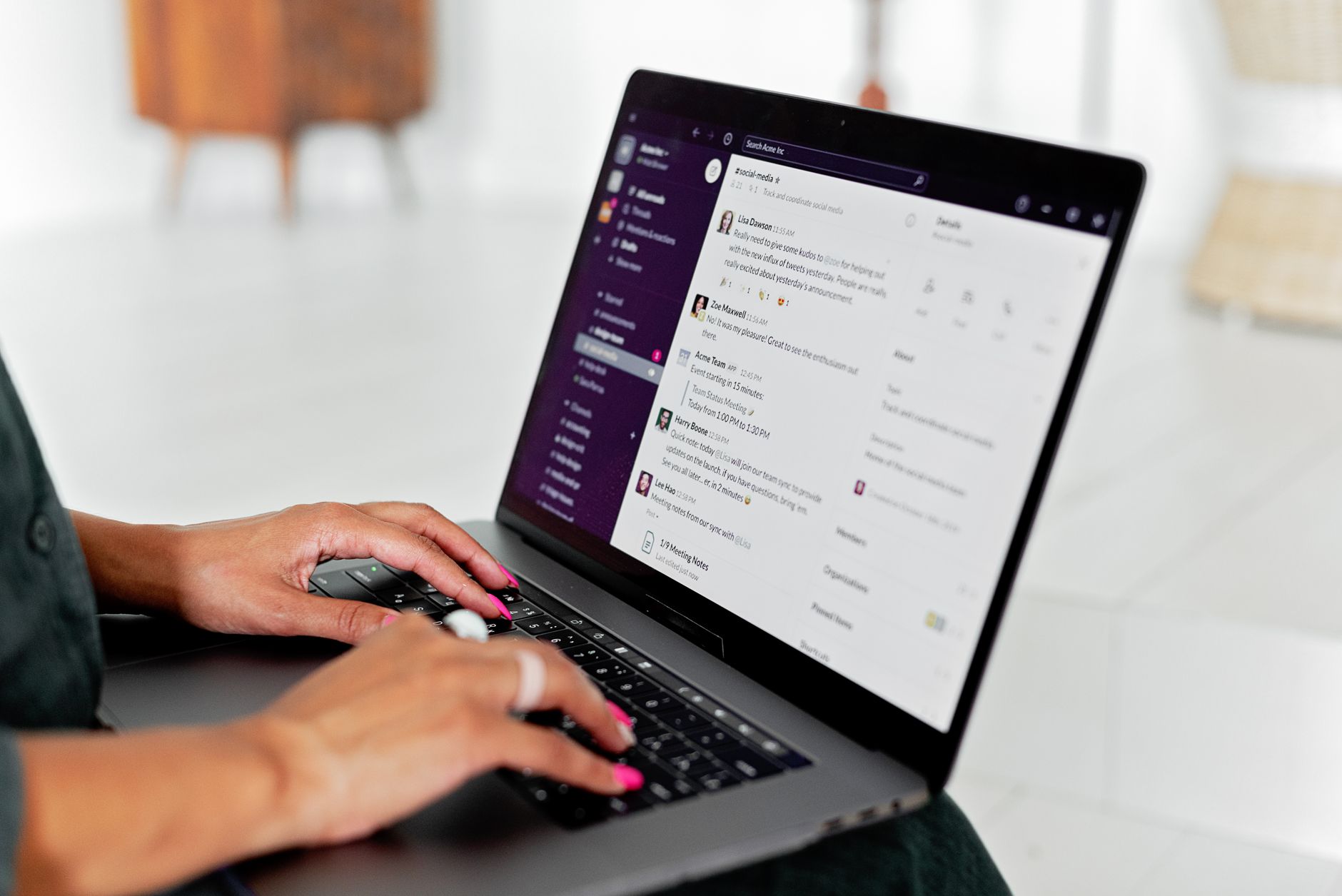
Build an approval interface. n8n can send a draft to Slack with Approve and Reject buttons. Make can use webhooks to pause a scenario and wait for your response. Zapier has paths, but pausing is harder on the free plan. This is why Zapier vs Make 2026 matters for email automation. Pausing and waiting for a human is a basic requirement, not a luxury.
In how to automate customer support AI, human handoff is a core principle. The same applies here. Set a service-level rule: if an email sits unapproved for two hours, send yourself a reminder. If it sits for 24 hours, fall back to a manual task. This keeps important clients from waiting too long while you decide whether to trust the system.
The approval step also gives you a training log. Each rejected draft tells you what the AI got wrong. Keep those examples. Every week, paste three rejected examples back into the prompt as negative examples. Over time, your approval rate rises. Some freelancers go from 60 percent accepted drafts to over 90 percent within a month. That is a realistic target if you train the prompt weekly.
- Automate follow-ups, reminders, and no-reply resets
Triage and replies are only half the value. Follow-ups close more deals and reduce overdue invoices. Build a workflow that checks a label like ‘awaiting reply’ once per day. If no response has arrived in two days, send a gentle follow-up draft for your approval. For invoices, link this to your AI invoicing automation so overdue reminders stay consistent.
Set a maximum number of follow-ups. Two automated nudges is often enough. After the second follow-up, route the thread to your manual task list. Do not let AI chase a client forever. It can look robotic and damage trust. Make the second follow-up shorter and give the client a clear exit: ‘If this is no longer a priority, let me know.’
Use calendar signals from the email. If an email mentions ’next week’, have the AI create a task in your project tool with the intended date. If it mentions a meeting, create a calendar event with a 15-minute prep reminder. This link between email and calendar is where automation starts to feel like a real assistant. Many freelancers miss this step and only automate inbox labels. The productivity gain lives in follow-up timing.
See automate hiring process with AI 2026 for a parallel workflow. Candidates need follow-ups just like clients. The same reminder logic carries over. If you run client work and hiring at the same time, reuse the follow-up workflow with a different label set. That saves duplicate build time and keeps your inbox rules tidy.
- Monitor, test, and expand without breaking trust
Review your automation weekly. Look at how many emails were routed correctly, how many drafts you edited, and how many follow-ups sent. Use a simple dashboard or a spreadsheet. n8n and Make both log execution history. Make’s execution log is especially easy to scan. If a rule misfires, fix the rule before adding new ones.
Test every change in a canary inbox first. Copy the workflow into a test environment. Send fake emails that include edge cases like attachments, long threads, and angry messages. Watch the outputs. This catches failures before a real client sees them. It also helps you understand how the AI responds under pressure.
Expand gradually. After week one, you might automate labeling and drafting only. After week two, add follow-ups for known clients. After week three, allow auto-send for internal notifications. Do not jump to full auto-send for external messages in the first month. The goal is an inbox that is clear, not an inbox you are afraid to open.
If you like this, look at best AI automation tools 2026 and how to automate bookkeeping with AI. Email is often the first win. After that, repetitive functions in finance and content follow the same pattern. Start small, review often, and let the workflow earn your trust one week at a time.
Red Flags & Warnings
- 🚨 Never let AI auto-send external replies on day one. Keep a human approval gate until drafts are accepted at least 90 percent of the time.
- 🚨 Do not connect your personal Gmail to an untested workflow. Create a dedicated inbox and use OAuth or an app password, not your main password.
- 🚨 Beware of AI hallucination in replies about pricing, deadlines, or legal terms. Add a blocklist rule that forces manual review when those topics appear.
- 🚨 Free automation plans run out fast. A single email may consume 3 to 10 operations. Track usage weekly to avoid silent failures when your plan hits its limit.
- 🚨 Do not automate follow-ups without a stop condition. Set a maximum of two nudges per thread or you risk spamming clients.
- 🚨 If a sender is angry or mentions cancellation, force a human review. AI tone can easily make a tense situation worse.
Frequently Asked Questions
Will AI handle my entire inbox automatically?
Not at first. You need triage rules, approval gates, and prompt training. Start with labeling and drafting. Add auto-send only after consistent results.
Which platform is cheapest for freelancers?
n8n self-hosted is free but requires server upkeep. Make’s free plan includes 1,000 operations per month. Zapier’s free plan gives 100 tasks per month. For low email volume, Make or n8n is usually cheaper.
Can AI reply with correct details about my services?
Only if you provide them in the prompt or a connected knowledge base. Never let the model invent pricing, turnaround, or legal terms. Use explicit boundaries and human review.
Do I need coding skills to set this up?
No. Visual platforms like Make and Zapier use drag-and-drop. n8n has a bit more technical curve but also has templates. Basic logic understanding helps more than coding.
How many follow-ups should I automate?
Two is a safe maximum for most client and prospect threads. After that, move the thread to a manual task. A clear opt-out line in the second follow-up helps protect trust.
Will Gmail flag automated sends as spam?
Low-volume, well-targeted replies are unlikely to trigger spam. Avoid blasting multiple cold emails from one account. Use a dedicated professional inbox and keep human approval for external sends.
What Should You Remember?
- Map email types first: Sort your inbox into reply now, reply later, and no reply needed before building any workflow.
- Use a dedicated inbox: Keep AI testing away from your personal account to limit risk from misroutes and bad drafts.
- Separate triage from reply drafting: Use two AI steps so you can fix classification without touching tone and message quality.
- Keep human approval gates: Draft replies but save them for one-click review until the system earns your trust.
- Watch free plan limits: n8n self-hosted is free, Make gives 1,000 operations monthly, Zapier gives 100 tasks monthly.
- Add follow-ups with stop conditions: Automate no more than two nudges per thread to avoid robotic client chasing.
- Review and retrain weekly: Use rejection logs to improve prompts and raise draft acceptance over time.
This article is for general information only. Review your workflow data and automation permissions before connecting tools. Some platforms have free-tier limits and paid plans that change over time , always check current pricing on the vendor’s site.